

Authentication and Authorization
Permissions and users can be managed from the administrator dashboard using Users link under the AUTHENTICATION AND AUTHORIZATION heading. Figure 1 shows an example of the user management page for a user named John.
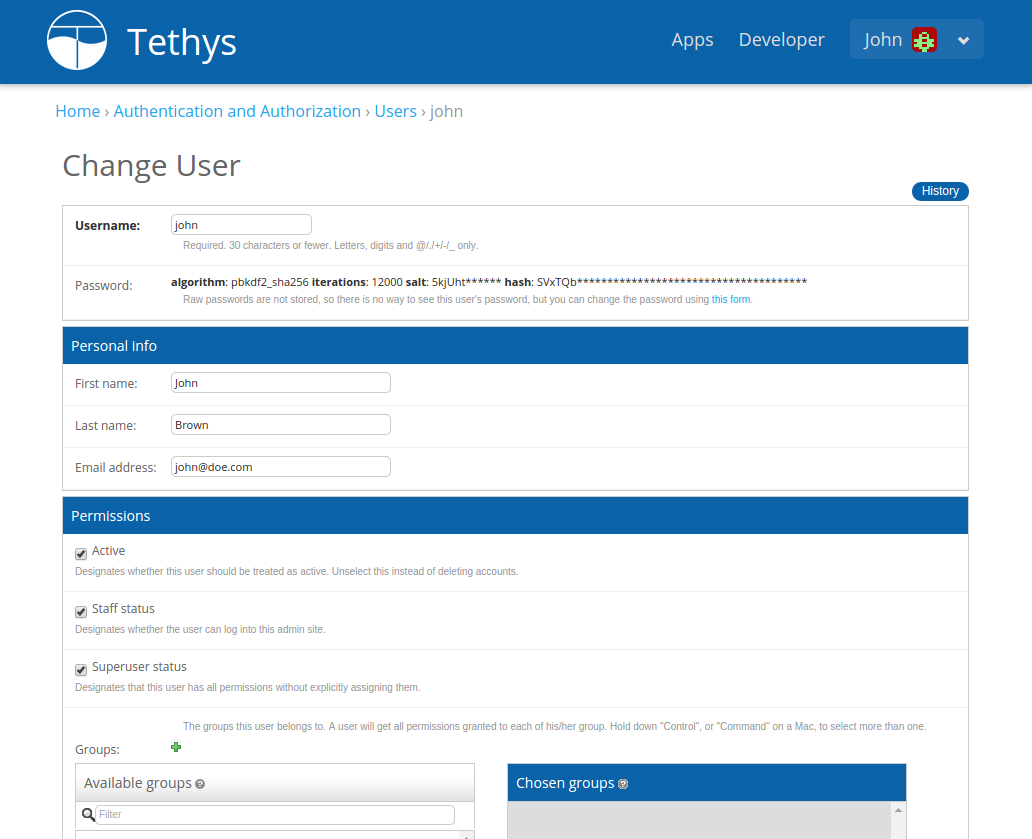
Figure 1. User management for Tethys Portal.
Assign App Permission Groups
There are two ways to assign an app permission group to a user. The first way is to use the Users dialog on the Change Group page:
Go to the administrator dashboard and select the
Groupslink under theAuthentication and Authorizationheading.Select the group and locate the
Usersdialog of theChange Grouppage.All users will appear in the
Available Userslist box. Adding a user to the permissions group is done by moving the desired user(s) to theChosen Userslist box.
The second way is to use the Groups dialog on the Change User page:
Go to the administrator dashboard and select the
Userslink under theAuthentication and Authorizationheading.Select the desired user and locate the
Groupsdialog under thePermissionsheading of theChange Userpage.All app permission groups will appear in the
Available Groupslist box. Assigning the permission group is done by moving the permission group to theChosen Groupslist box.
Note
Although the permissions may also appear in the User Permissions list box, they cannot be properly assigned in the Change User dialog.
Assign App Access Permissions
Administrators of a Tethys Portal can control access to each installed app and/or proxy app in the portal. However, this feature is disabled by default. To enable app access control set the following setting in the portal_config.yaml:
settings:
  TETHYS_PORTAL_CONFIG:
    ENABLE_RESTRICTED_APP_ACCESS: True
Caution
The effect of the ENABLE_RESTRICTED_APP_ACCESS setting is negated if ENABLE_OPEN_PORTAL is also set to True.
There are two ways to assign app permissions to users and groups. The first method is to use the Change Group page from the Group section of the administrator dashboard. The second method is using the object permission button from the Change Tethys App or Change Proxy App page of each individual app. The first method is recommended over the second one when working with app permissions at the group level because it offers a more responsive interface and it facilitates working with multiple permissions from different apps and groups at the same time. Both methods are described below.
Change Group Method (Recommended)
- To assign app permissions to a user using the
Change Groupmethod: Go to the administrator dashboard and select the
Groupslink under theAuthentication and Authorizationheading.Select the link with the group name from the list.
On the
Change Grouppage you can assign a group permission to access a specific proxy app from theProxy Appsmultiselect field or installed app from theAppsmultiselect field by moving an app from the available app box to the chosen app box (see Figure 2).When an installed app is added to the chosen apps box, the form will dynamically display all the permissions and groups associated with that app if there are any (see Figure 3).
Individual permissions can be added to the group by moving the permissions from the available box of the specific app to the chosen box. In addition, all the permissions from another group that are associated with the specific app can also be added by moving the specific group from the available groups box to the chosen groups box.
The
Change Groupform then needs to be saved for changes to take effect.

Figure 2. Change Group - Add app access.
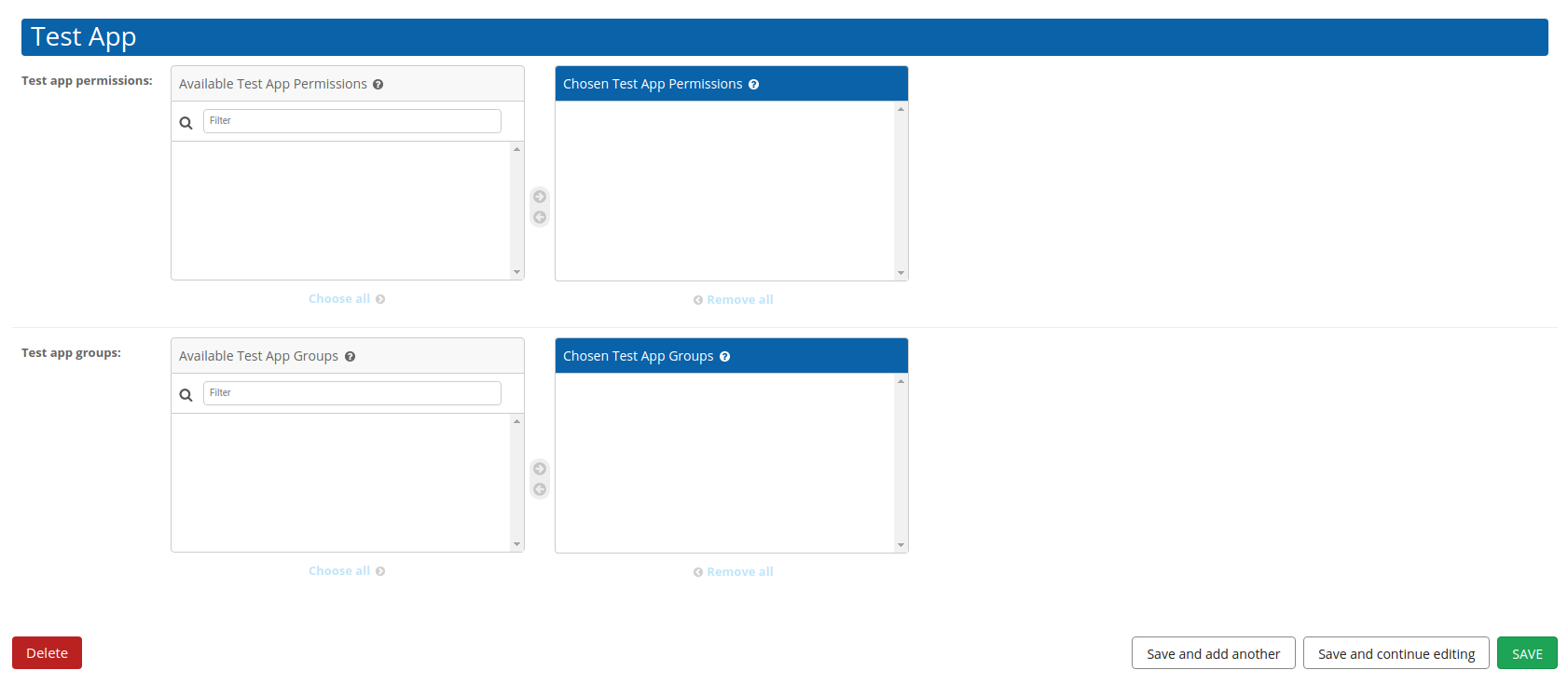
Figure 3. Change Group - Add permissions from available permissions or groups.
Note
Since assigning the individual app permissions one by one can be a cumbersome process, we highly recommend that you use the Change Group page when working with multiple app permissions.
Object Permissions Method
- To assign a singular app permission to a user using the
Change Tethys Apppage: Go to the administrator dashboard and scroll down to the
Installed Appslink under theTethys Appsheading.Select the link with the app name from the list.
In the upper right corner of the
Change Tethys Apppage click theObject Permissionsbutton (see Figure 4).On the
Object Permissionspage you can assign app-specific permissions to a user by entering the username in theUser Identificationfield and pressing theManage userbutton (see Figure 7).The same method can be used to add app permissions to a group using the
Groupsection of theObject Permissionspage. Previously added App permissions will be listed in the table on this page and can be edited by clicking theEditlink (see Figure 8).
A similar process can be done for proxy apps.
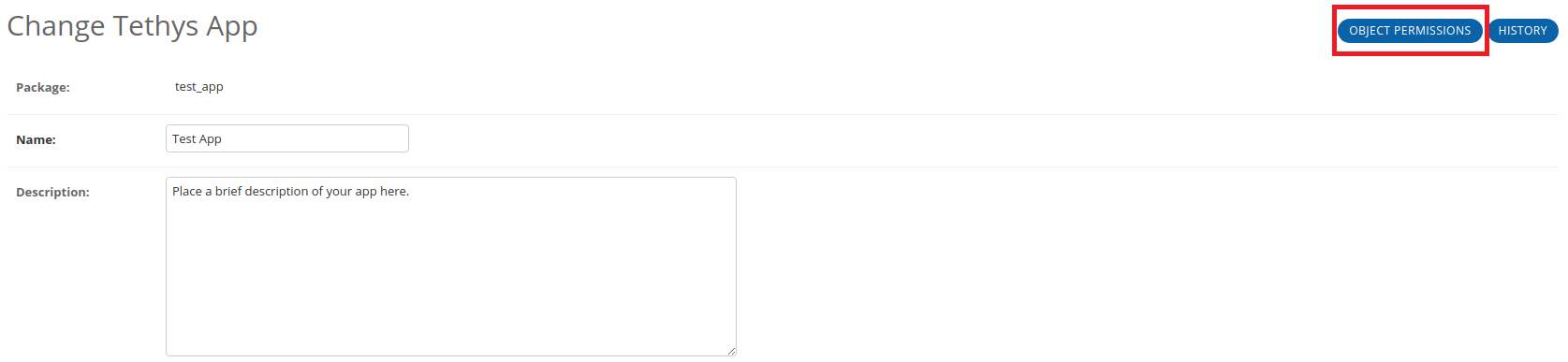
Figure 4. Object Permissions button.
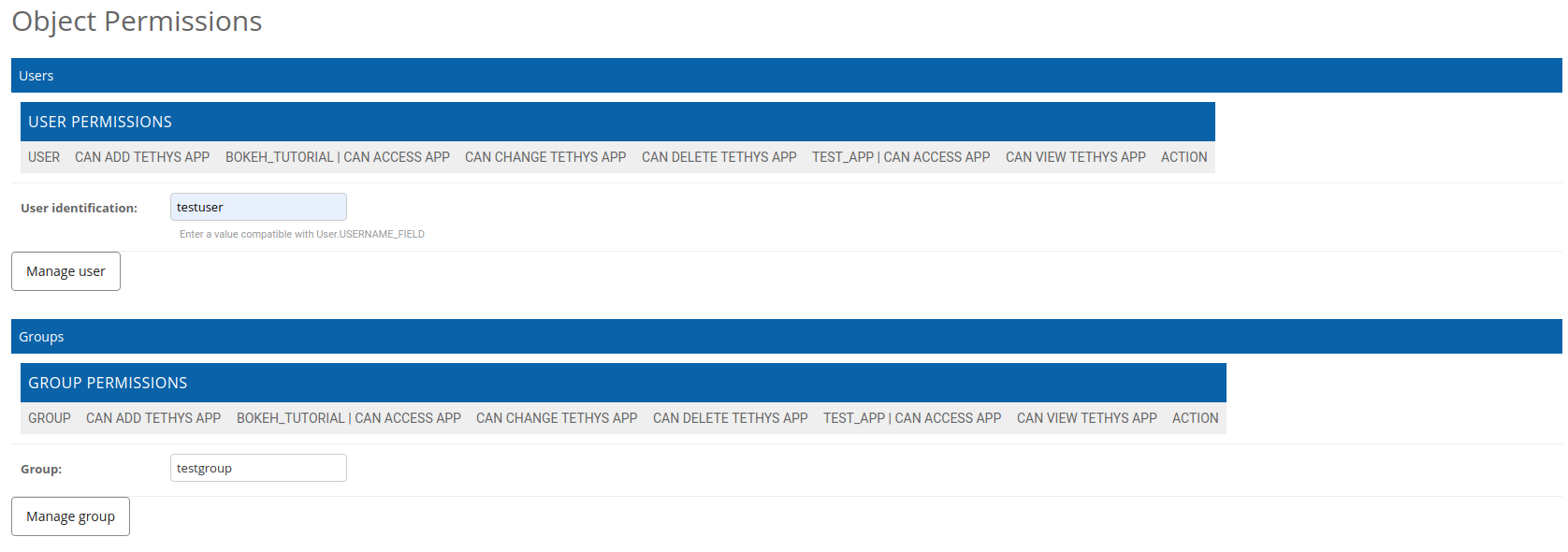
Figure 5. Object Permissions page.
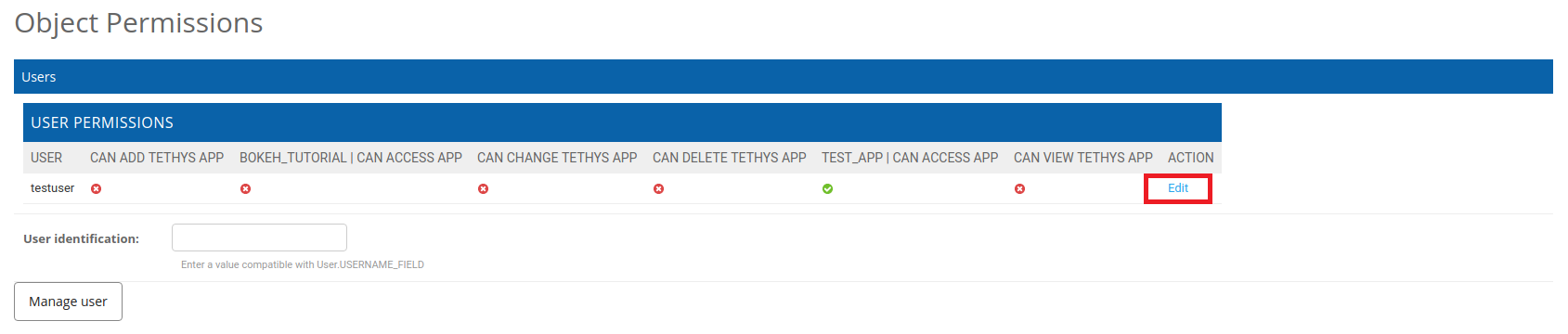
Figure 6. Link to edit Object Permissions.
Anonymous User
The AnonymousUser can be used to assign permissions and permission groups to users who are not logged in. This means that you can define permissions for each feature of your app, but then assign them all to the AnonymousUser if you want the app to be publicly accessible.