

Tethys Quotas
The link under the TETHYS QUOTAS heading can be used to manage resource quotas that have been loaded into the Tethys Portal. Custom quotas can be created (see Creating Custom Quotas), but by default Tethys includes two quotas: User Workspace Quotas and App Workspace Quotas.
Resource Quotas
Resource Quotas shows a list of all loaded quotas. By default, all quotas are disabled when they are first loaded. Use this page to enable and customize the quotas for your portal (see Figure 1).
All quotas have the following fields that can be customized:
Default- Default quota value.Help- Help text to be displayed to users when a quota is exceeded.Active- Enable to enforce this quota.Impose default- When enabled the default quota will be used for users/apps that do not have a specific quota set. When disabled the quota will not be enforced on users/apps that do not have a specific quota set.
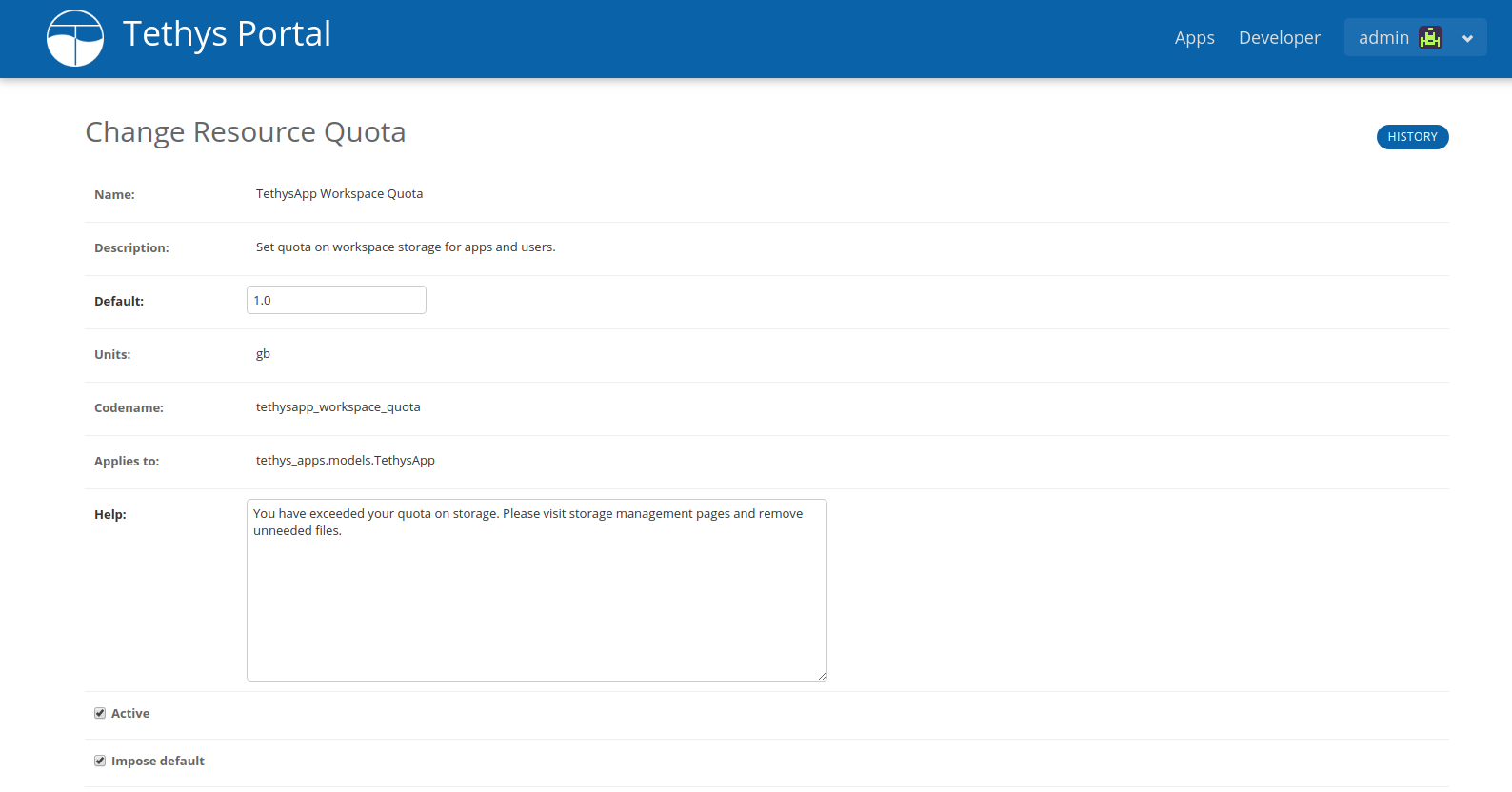
Figure 1. Resource Quota settings page.
User Workspace Quotas
To manage quotas specific to individual users, navigate to the user's settings page. Any applicable Resource Quotas will be listed in the User Quotas section. To set a custom quota for the user, enter the custom value in the Value field on the line corresponding to the appropriate Resource Quota. A link to the Resource Quota is also provided in the table (see Figure 2).
Tip
See Manage User Storage for details on how to manage user workspace storage.
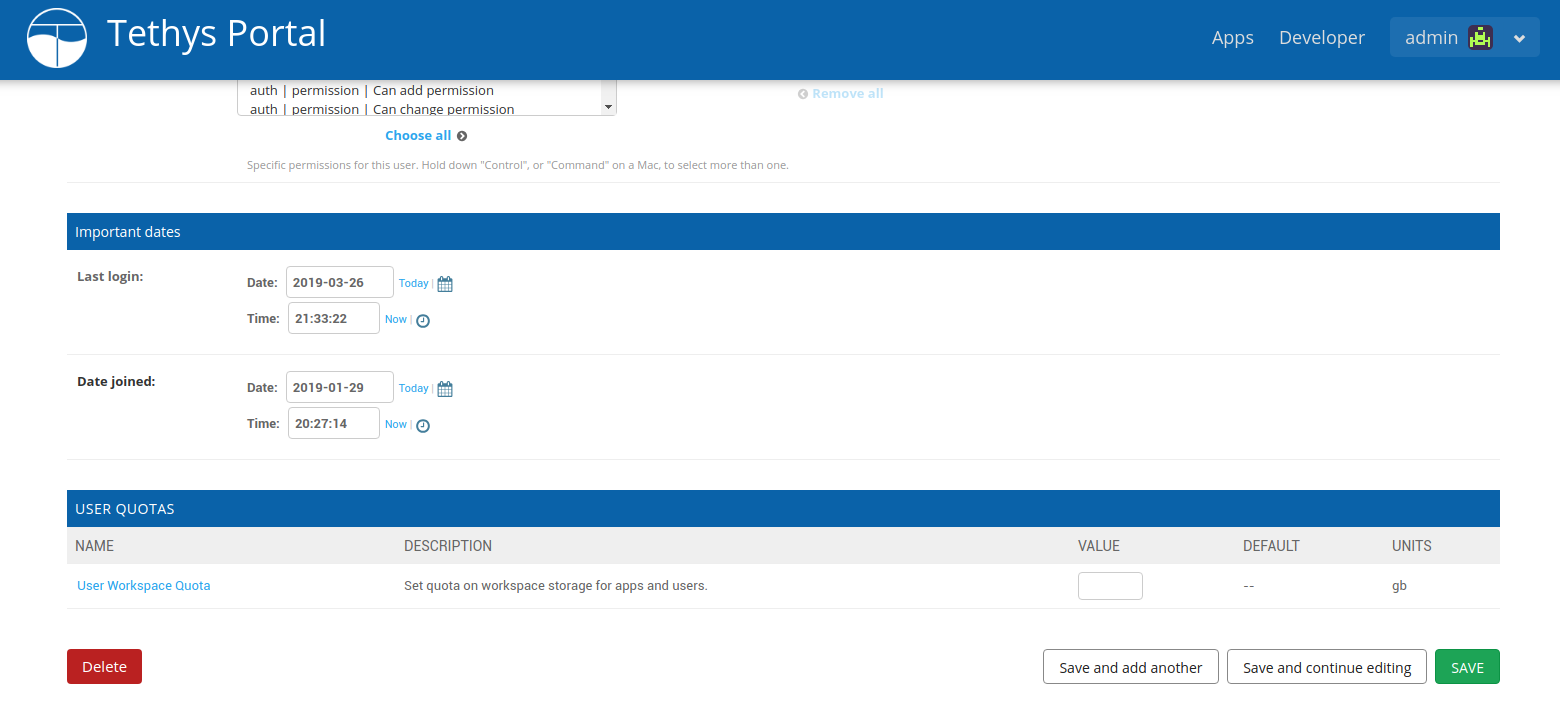
Figure 2. User settings page showing User Quotas.
App Workspace Quotas
To manage quotas specific to individual apps, navigate to the specified app's settings page. Any applicable Resource Quotas will be listed in the Tethys App Quotas section. To set a custom quota for the app, enter the custom value in the Value field on the line corresponding to the appropriate Resource Quota. A link to the Resource Quota is also provided in the table (see Figure 3).
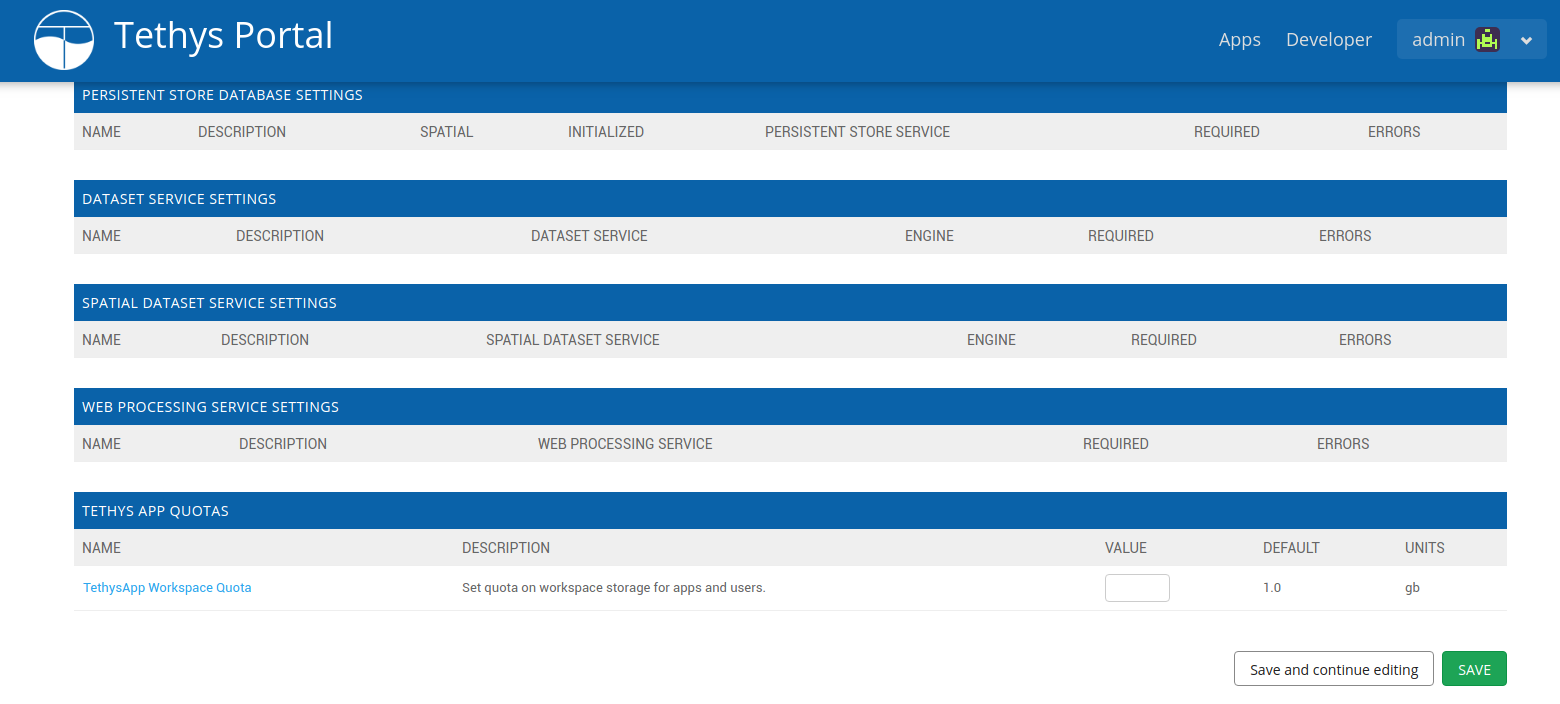
Figure 3. App settings page showing Tethys App Quotas.