

User Quotas
Last Updated: September 2025
This recipe demonstrates how to add and enforce user quotas. User workspace quotas can be used to restrict the amount of storage that an individual user has access to in the user workspace and user media locations. For more information on the Quotas API see the Quotas API documentation
We'll start by going over how to add a generic user workspace quota:
Go to your tethys portal admin settings by clicking on your username in the top right corner, then on "Site Admin"
Scroll down until you find "Resource Quotas" and click on it, then open "User Workspace Quota"
Here you can set the default amount for user workspace quotas in your tethys portal and the help message that will appear if a user goes over the quota.
For the sake of this recipe change the default amount to "1.68e-06". This equates to about 1820 bytes.
Make sure to select "Active" before hitting save on the bottom of the page.
App and User workspace quotas only apply to non-admin users, so make sure to create and log into a normal user account before continuing
Now that you've added and activated your quota, let's add a controller to your app to begin writing to the app workspace path. Since this controller is working with a shapefile, we'll be unzipping it in our controller into its individual inner files.
from tethys_sdk.routing import controller
import zipfile

@controller(user_workspace=True)
def page_controller(request, user_workspace):
    if request.method == 'POST':
        area_name = request.POST.get('area_name')
        shapefile = request.FILES.get('shapefile')

        area_path = user_workspace.path / area_name
        area_path.mkdir(parents=True, exist_ok=True)

        file_path = area_path / shapefile.name

        with open(file_path, 'wb+') as f:
            for chunk in shapefile.chunks():
                f.write(chunk)

        with zipfile.ZipFile(file_path) as z:
            z.extractall(area_path)

        file_path.unlink(missing_ok=True)

    ...
Note
For more information on geting user inputs like in this controller refer to the recipe Get User Input
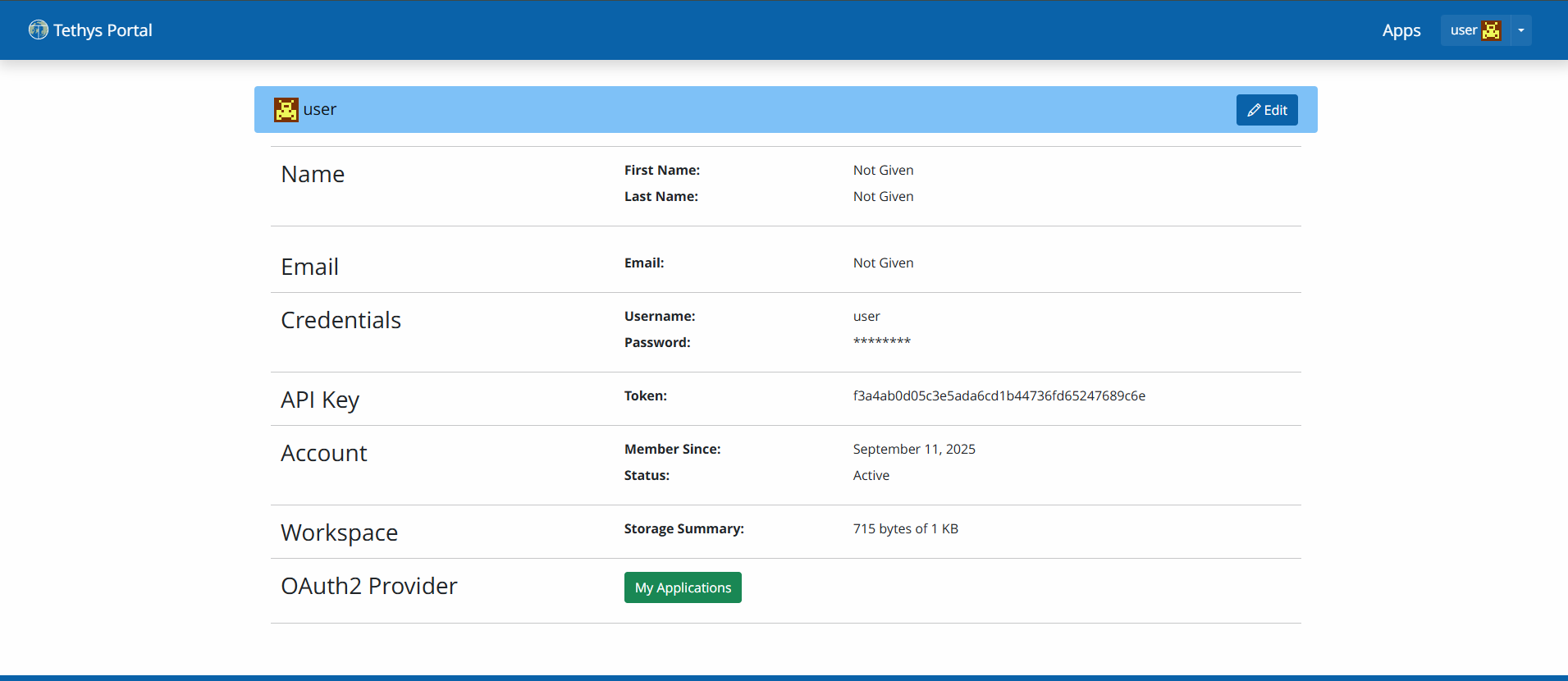
After adding a shapefile to your user workspace, close your app and access your user profile page in the top right corner. Here, you can find the amount of storage currently you are using:
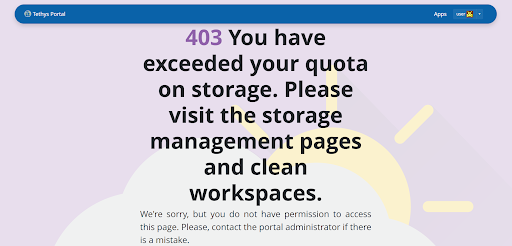
Continue adding shapefiles until you see a screen like this:
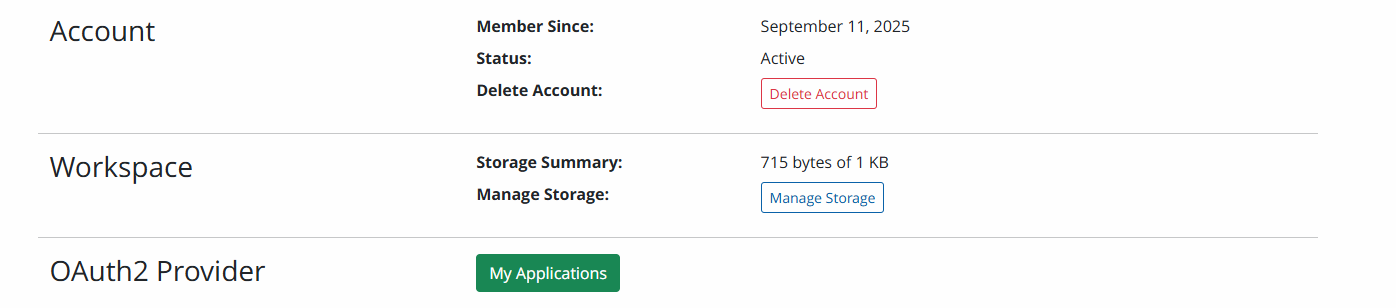
You can clear out this workspace by pressing "edit" towards the top of the page and then "Manage Storage" in the "Workspace" row.
For more information on using the Paths API to access the user workspace path, check out the User Workspace Path Recipe, or the Paths API documentation