

Getting Started With a Persistent Store Service
Last Updated: September 2025
Recommended prerequisite: Use Databases
1. Install Dependencies
Persistent stores is an optional feature in Tethys. For this recipe, we will be setting up a PostgreSQL persistent store. If using a PostgreSQL persistent store, the sqlalchemy<2 and psycopg2 libraries are required. Install these libraries using one of the following commands:
# conda: conda-forge channel strongly recommended
conda install -c conda-forge "sqlalchemy<2" psycopg2

# pip
pip install "sqlalchemy<2" psycopg2
If you'd like to install your app somewhere else, it will help to add these libraries to the app's dependencies. Add the new dependencies to your install.yml as follows:
# This file should be committed to your app code.
version: 1.1
# This should be greater or equal to your tethys-platform in your environment
tethys_version: ">=4.0.0"
# This should match the app - package name in your setup.py
name: dam_inventory

requirements:
# Putting in a skip true param will skip the entire section. Ignoring the option will assume it be set to False
skip: false
conda:
    channels:
    - conda-forge
    packages:
    - sqlalchemy<2
    - psycopg2

pip:

npm:

post:
2. Connecting to Your PostgreSQL Persistent Store Service
In your preferred text editor, open
app.pyand define a newPersistentStoreDatabaseSettingby adding thepersistent_store_settingsmethod to your app class:from tethys_sdk.app_settings import PersistentStoreDatabaseSetting class App(TethysAppBase): """ Tethys app class for your application. """ ... def persistent_store_settings(self): """ Define Persistent Store Settings. """ ps_settings = ( PersistentStoreDatabaseSetting( name='primary_db', description='primary database', initializer='your_app.model.init_primary_db', required=True ), ) return ps_settingsAdd a PostgreSQL Persistent Store Service to Tethys Portal:
Go to Tethys Portal Home in a web browser (e.g. http://localhost:8000/apps/)
Select Site Admin from the drop down next to your username.
Scroll down to the Tethys Services section and select PostgreSQL Persistent Store Services link.
Click on the Add PostgreSQL Persistent Store Service button.
Give the PostgreSQL Persistent Store Service any name and fill out the connection information.
Press Save to create the new PostgreSQL Persistent Store Service.
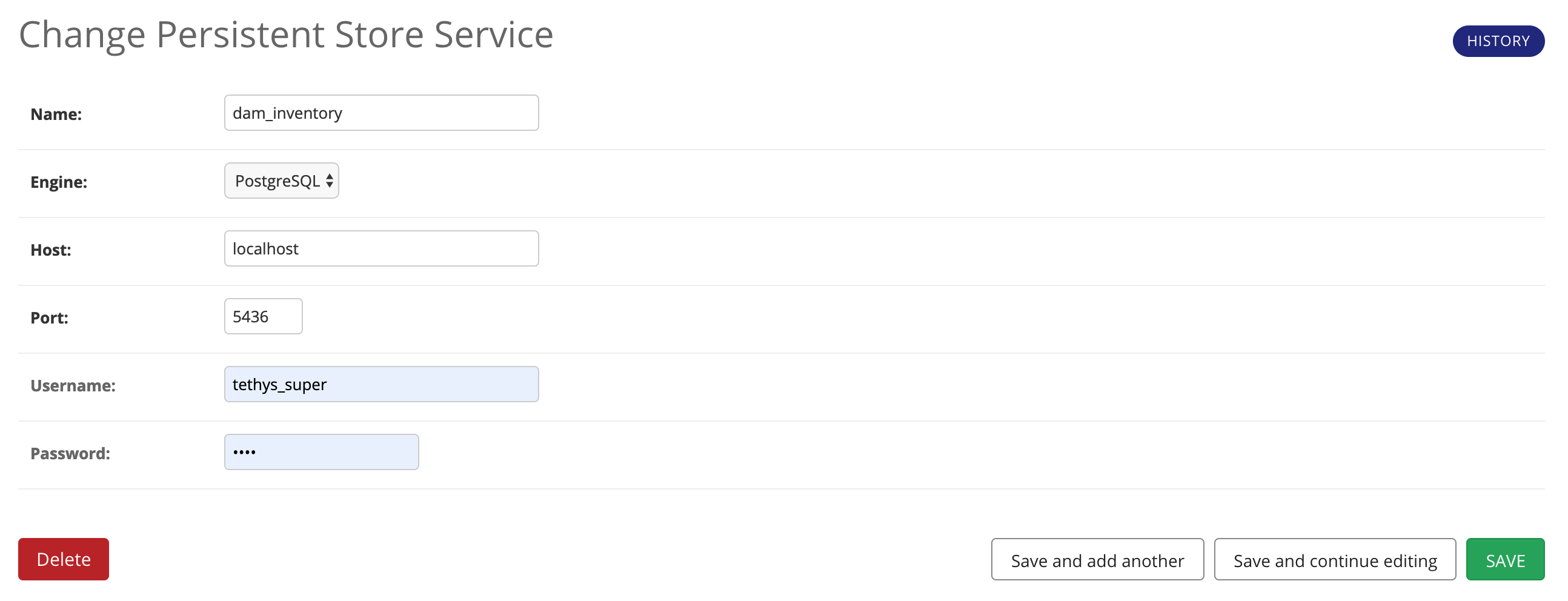
Important
The username and password for the persistent store service must be a user with permissions to create databases to use spatial persistent stores. The tethys db configure command creates a superuser named "tethys_super", password: "pass".
Assign the Persistent Store Service to Your App
Go to Tethys Portal Home in a web browser (e.g. http://localhost:8000/apps/)
Select Site Admin from the drop down next to your username.
Scroll down to the Tethys Apps section and select the Installed App link.
Select the link for your app.
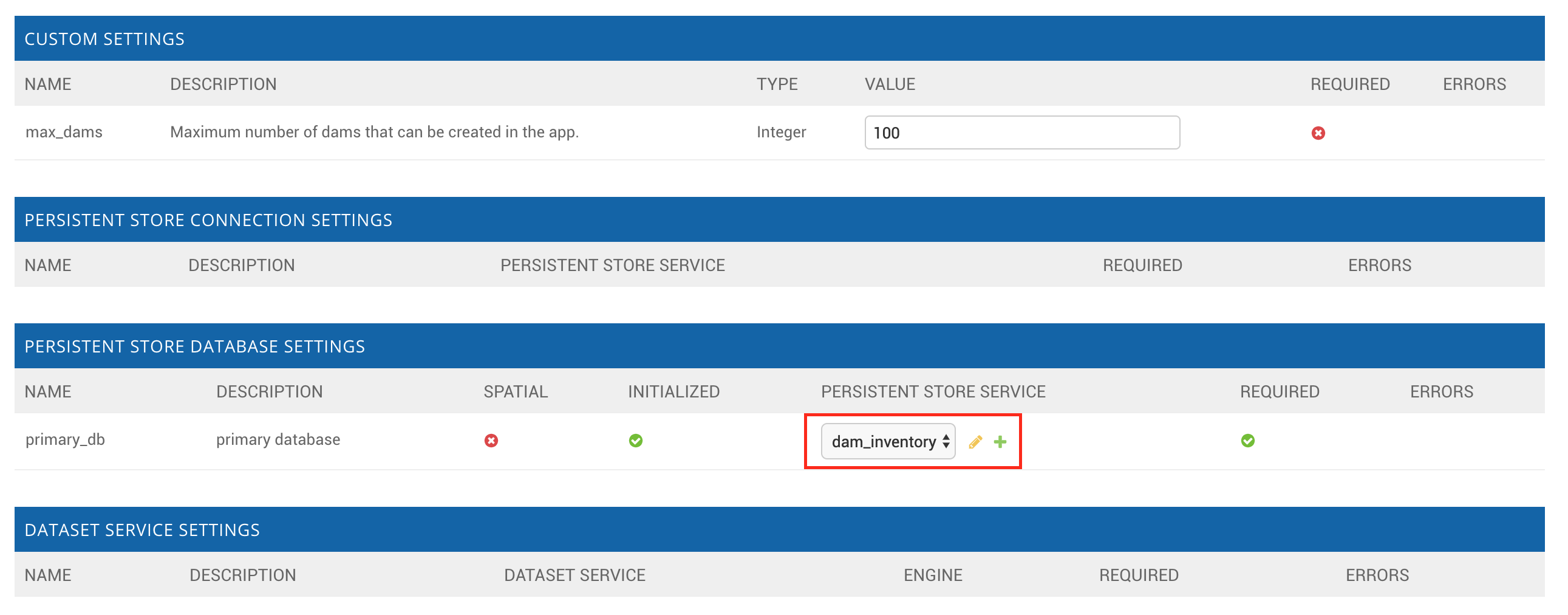
Scroll down to the Persistent Store Database Settings section.
Assign the Persistent Store Service that you created in Step 4 to the primary_db setting.
Press Save to save the settings.
If you've already defined tables for the database in your app, you'll need to run the syncstores command to create them in your new Persistent Store database:
tethys syncstores your_app